
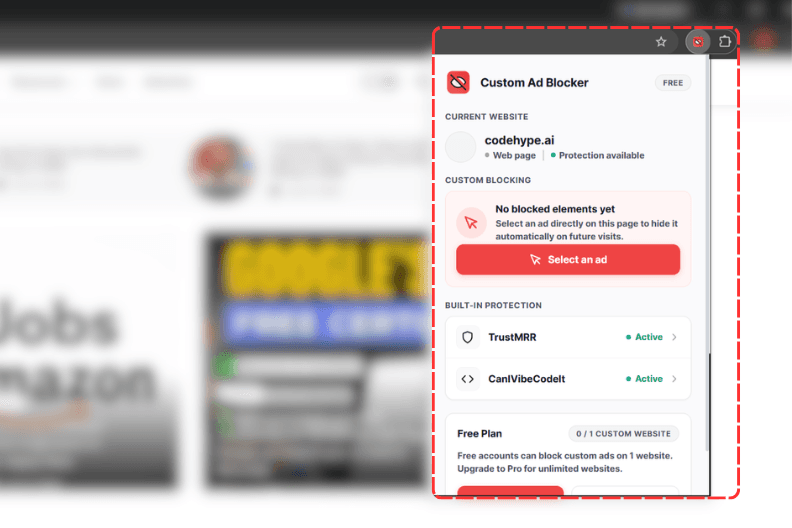
01
Select an ad
Open Custom Ad Blocker and activate the visual picker.

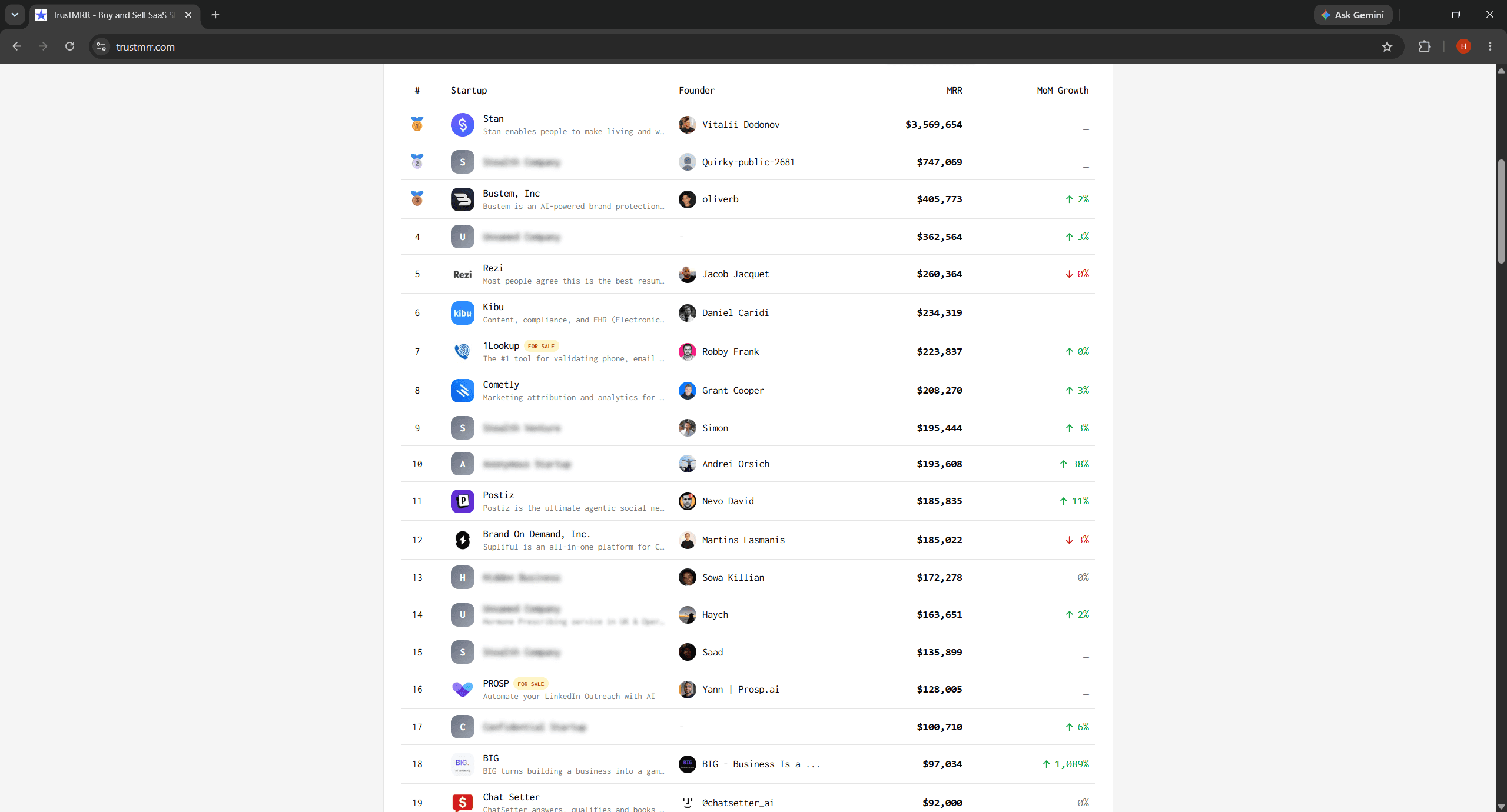
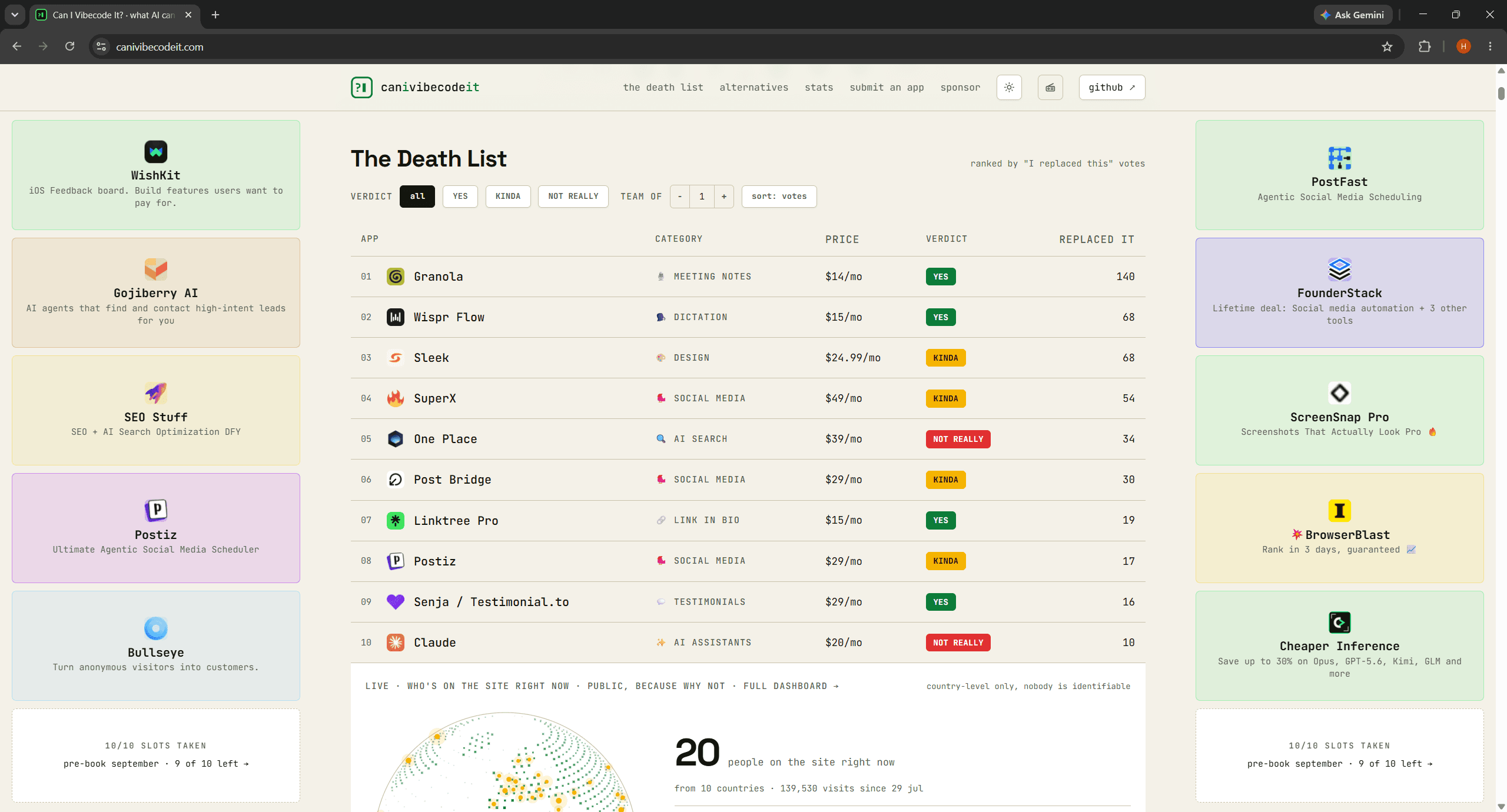
Block unwanted ads, sponsored cards, and promotional content across SaaS apps like  TrustMRR,
  Product Hunt,
  CanIVibeCodeIt,
  TinyLaunch, and more.
Chrome · Microsoft Edge
Block custom ads on any SaaS website
How custom ad blocking works
No filter lists. No CSS selectors. No complicated rules.
Open Custom Ad Blocker and activate the visual picker.
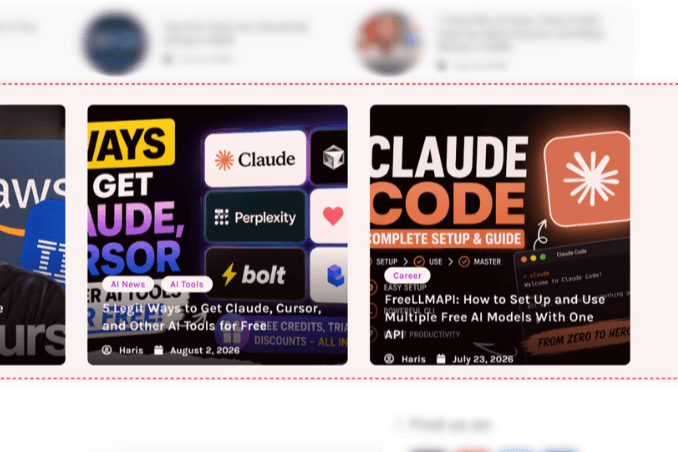
Click the sponsored card, promotional widget, sidebar, or other element you want to remove.
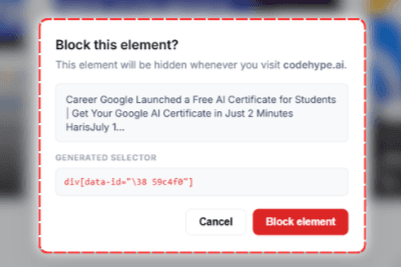
Save the rule and the element stays hidden whenever you revisit the website.
Your browser remembers your rules—you won't block the same ad twice.
Made for the web you use
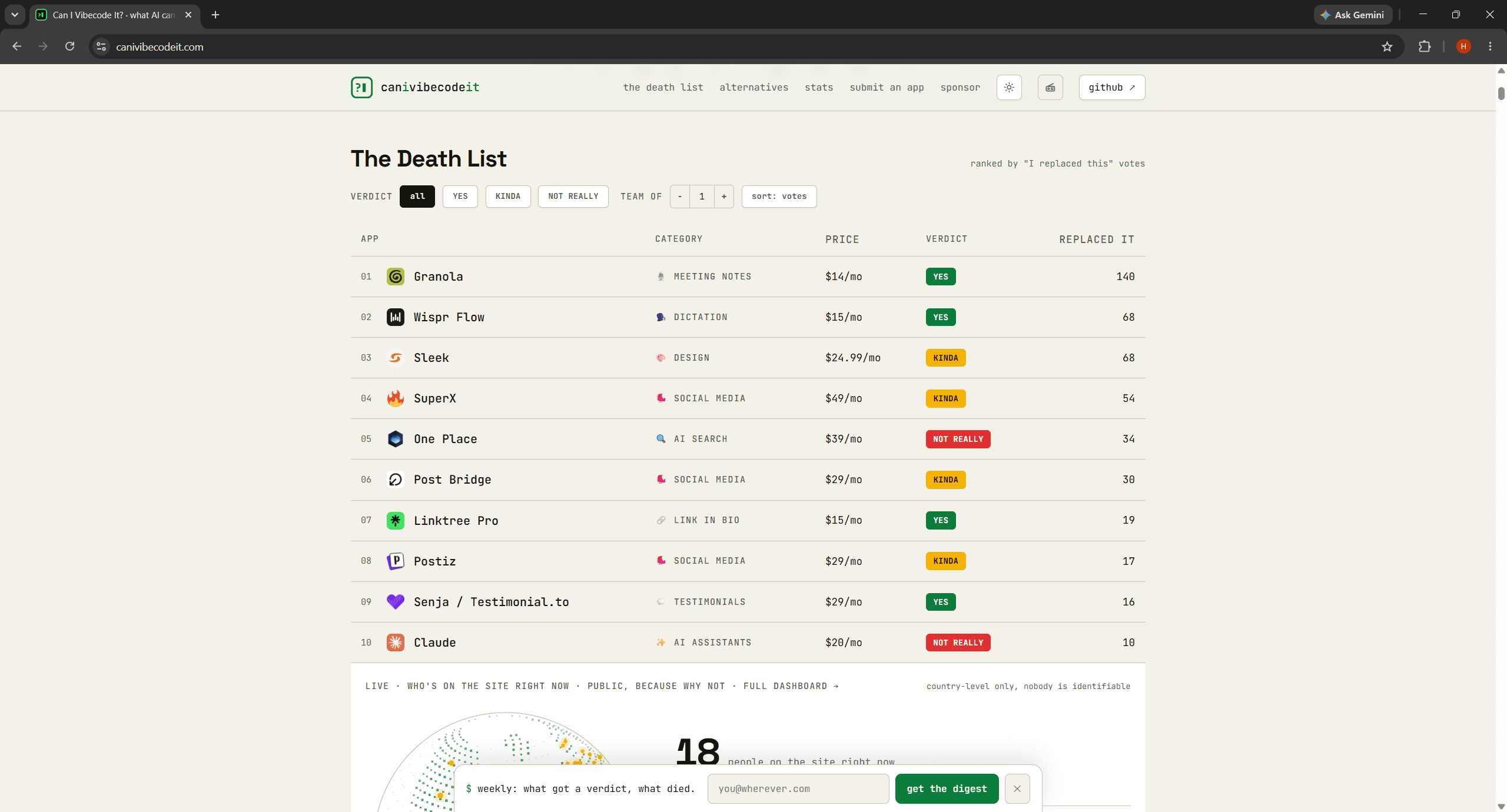
Built-in protection on supported SaaS sites—see the difference before and after one click.
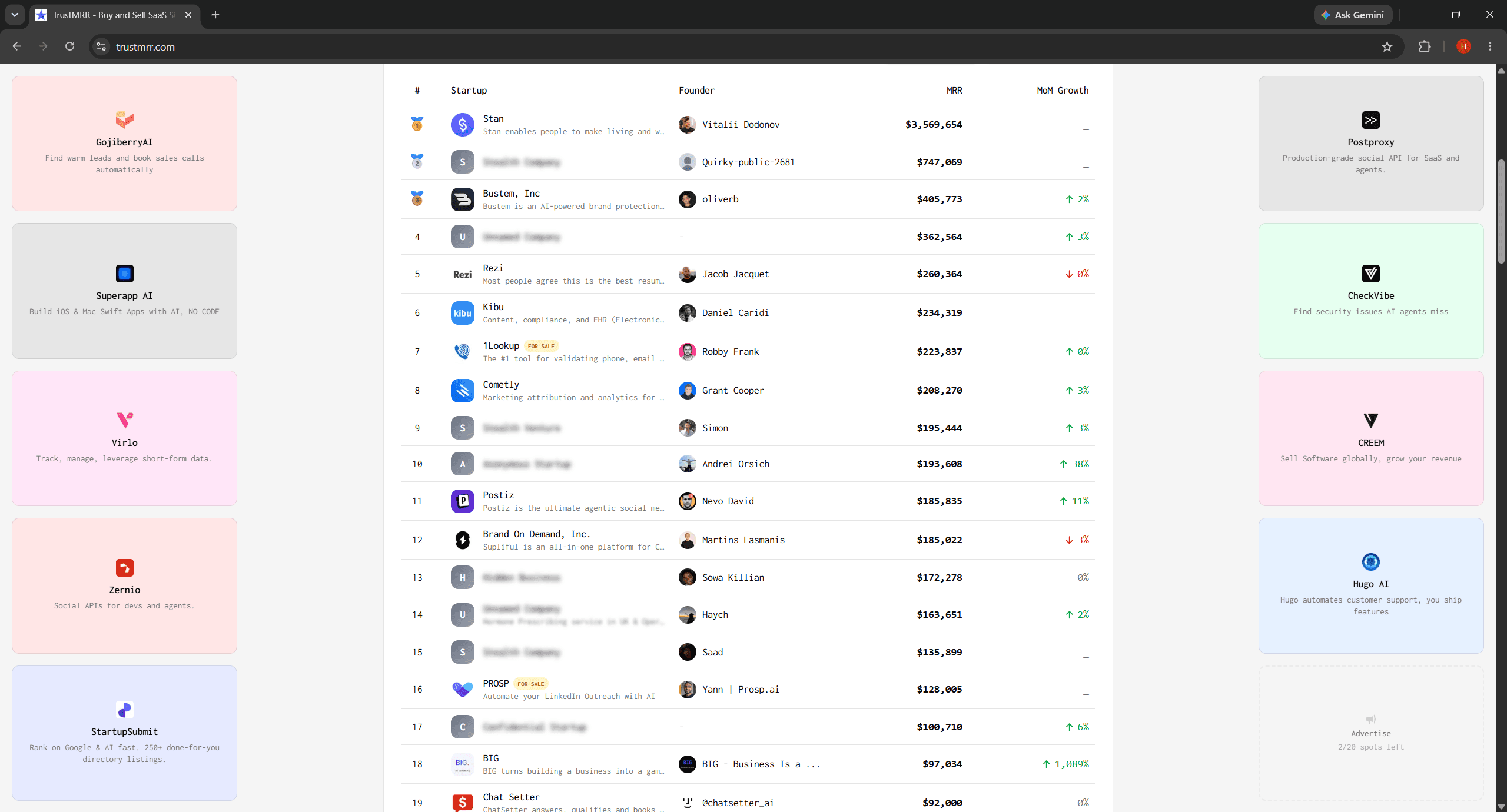
Built for custom ads
Select an unwanted ad directly on the webpage. No developer tools or CSS knowledge required.
Preconfigured rules for supported sites—no setup required.
Block once; stay hidden on every future visit.
Hide one sponsored card without touching the rest of the page.
No filter lists, regex, or complicated configuration.
Create your own rules for SaaS sites, startup directories, marketplaces, and any other website.
See it in action
Before → select → after. The same flow you’ll use in Chrome or Edge.
A sponsored card or promo block on the page you’re browsing.
Use the visual picker—no devtools or CSS.
The same element stays hidden on your next visit.
Rules sync in your browser—nothing leaves the page until you block.
Pricing
No recurring subscription. Pay once and keep Pro access for the lifetime of the product.
FAQ
Custom ads on SaaS sites—Chrome and Edge.
Take control of your browsing
Select it once and keep it hidden. Block sponsored cards, promotional content, and custom ads across the SaaS websites you use every day.
Chrome · Microsoft Edge · Free to install